Add a floating button to your store so any visitor can join your referral program and get their referral link.
The Signup Form adds a floating button to your store. Visitors click it, enter their phone number and get their own referral link right away, ready to share on WhatsApp or email.
Turning on the Signup Form, then joining from the store
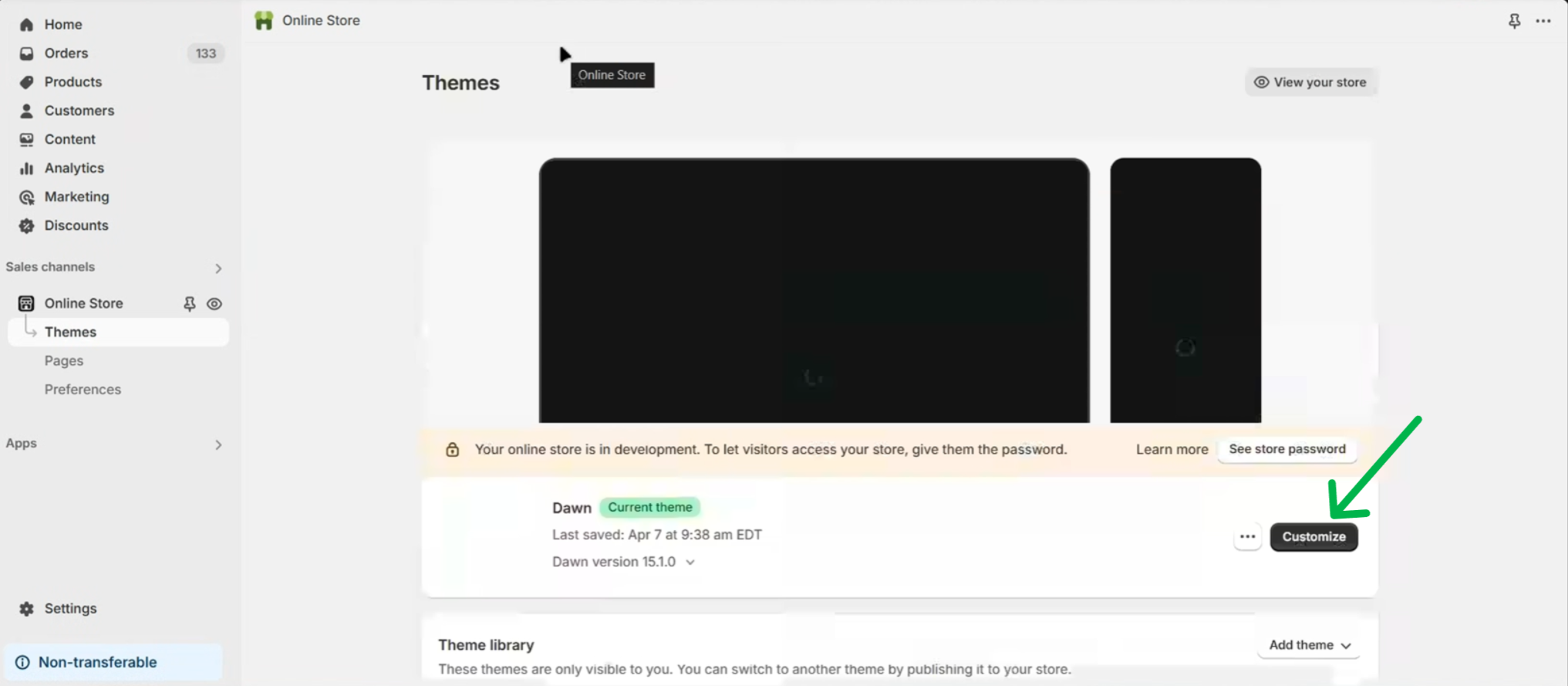
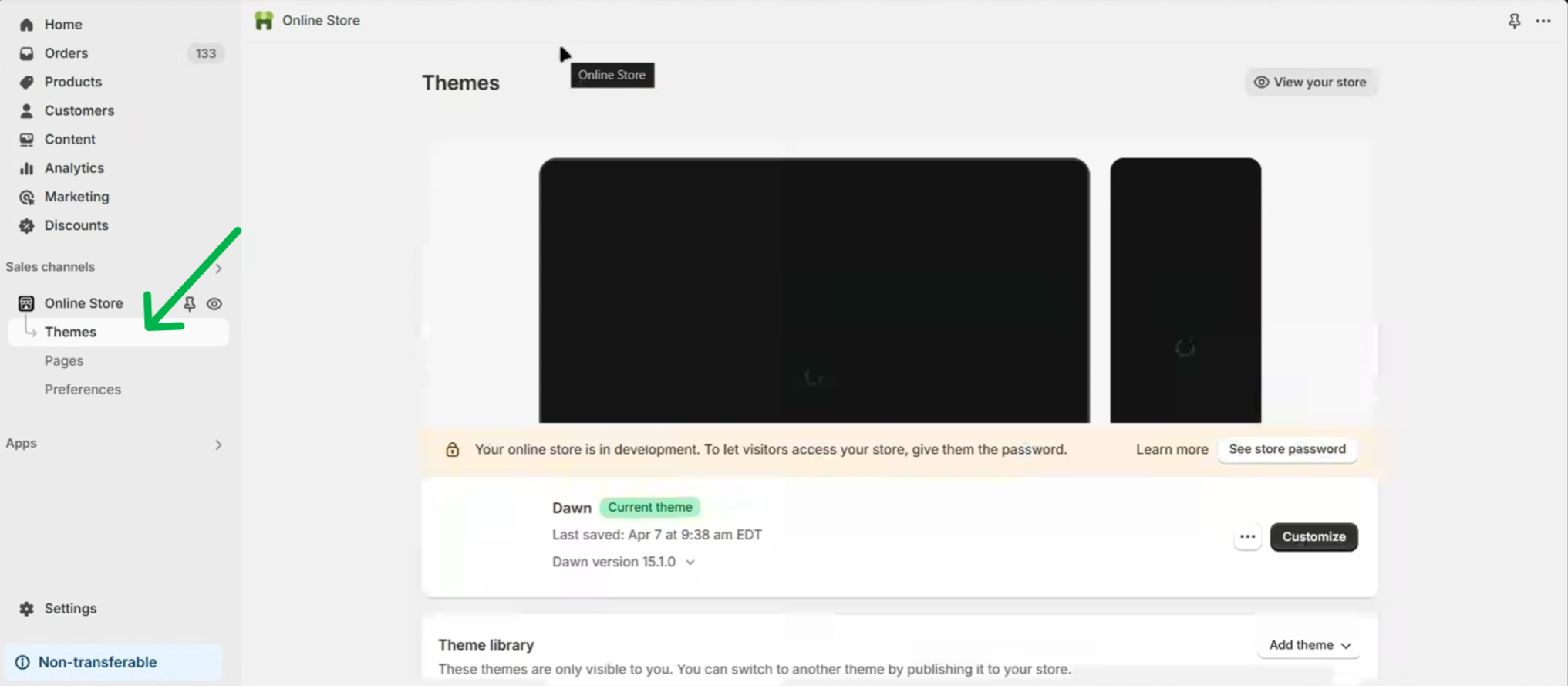
In your Shopify admin, go to Online Store → Themes.
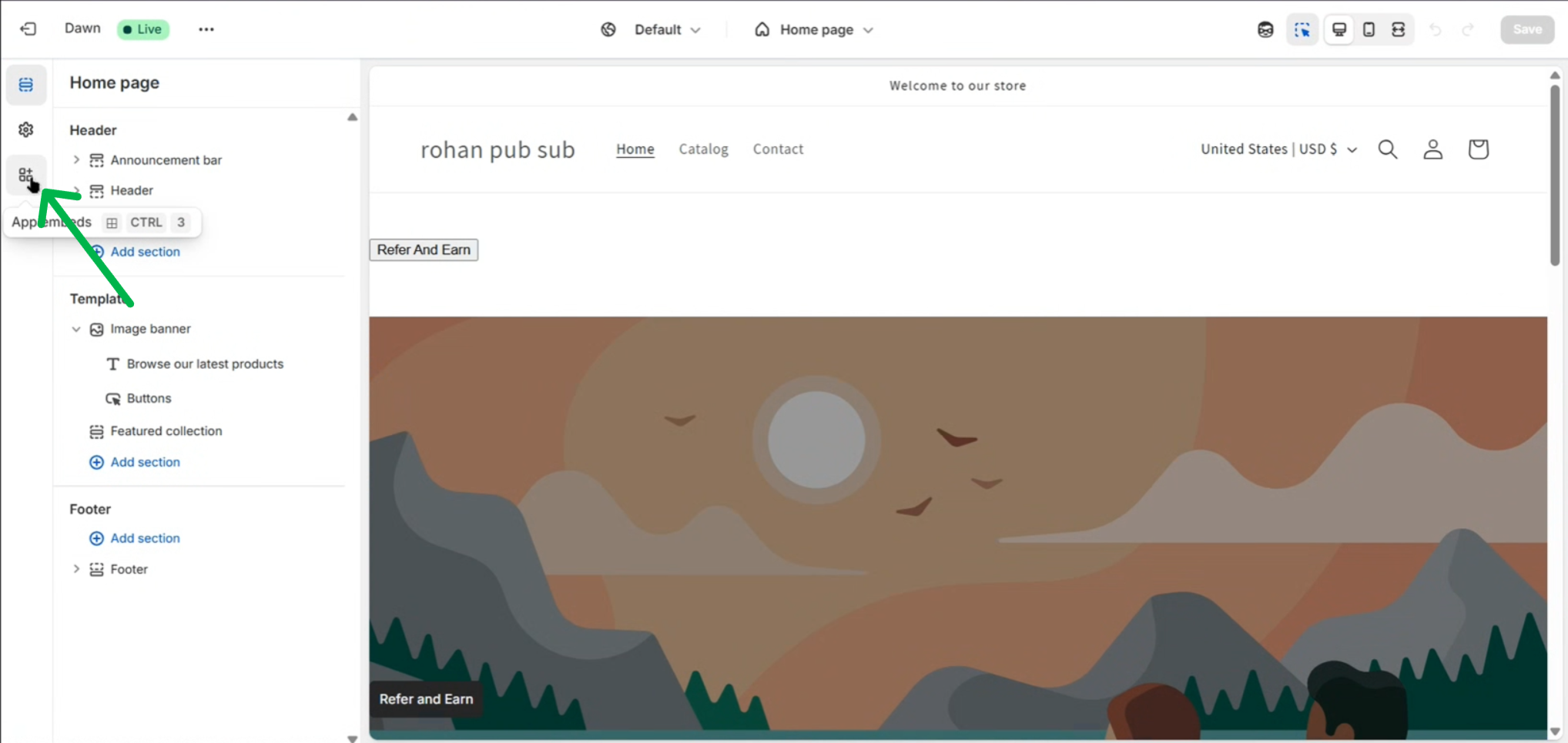
Click Customize on your current theme.
2
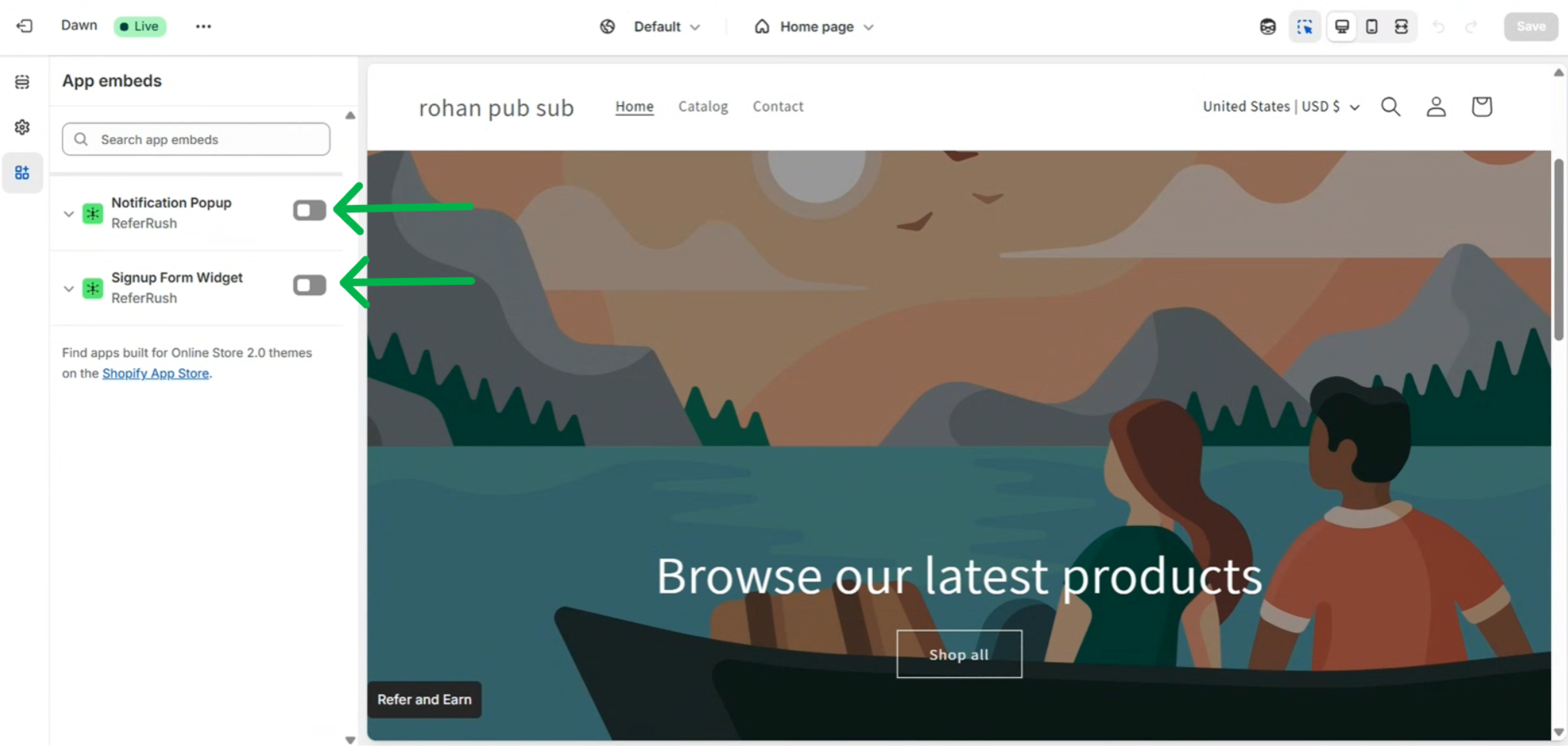
Open App embeds
Click the App embeds icon in the left sidebar.
3
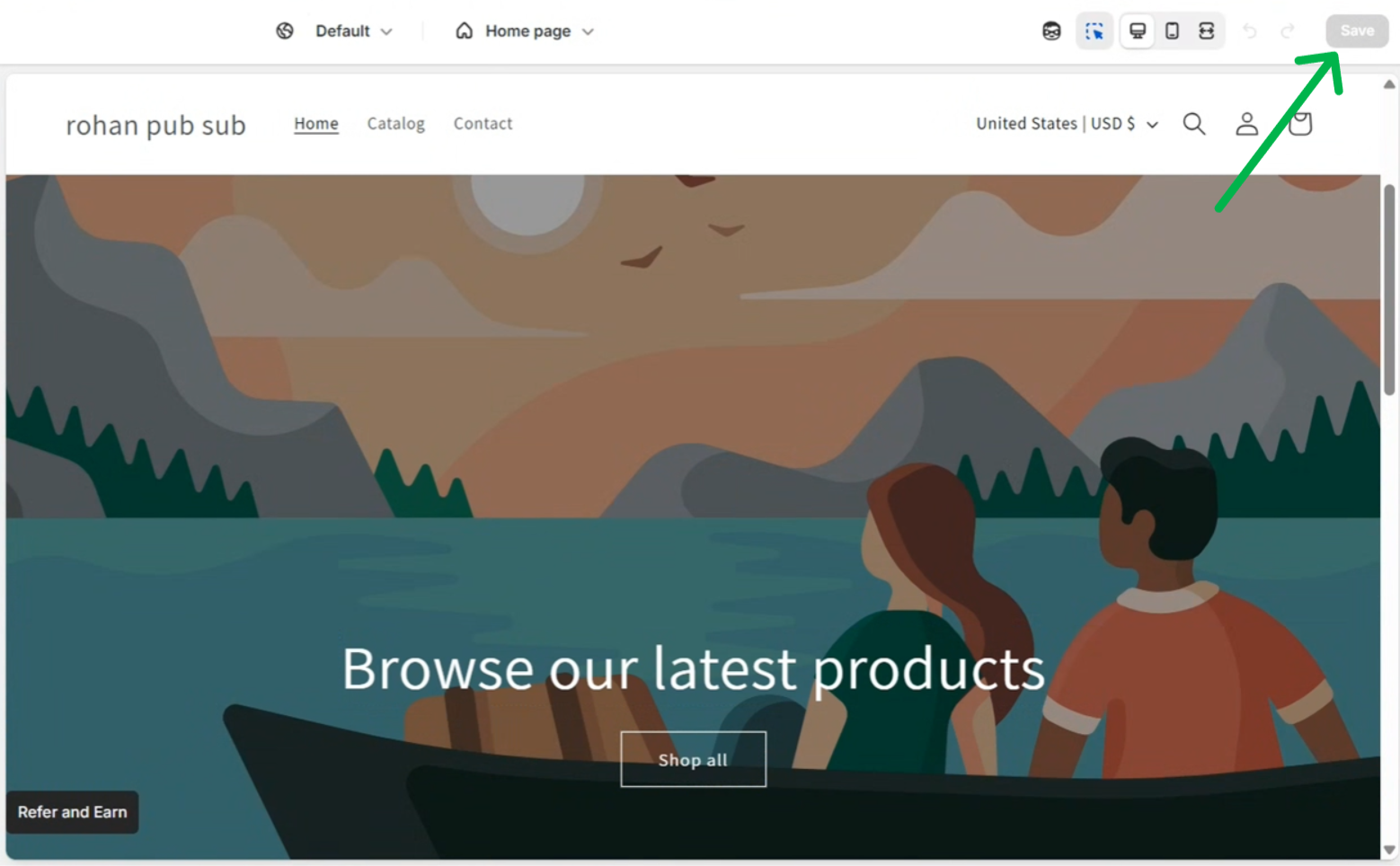
Turn on Signup Form Widget
Find Signup Form Widget (by ReferRush) and switch its toggle on.
The button’s position is set in your ReferRush dashboard, not in the theme editor. See Customize it.
4
Save
Click Save in the top-right corner.
5
Check that it's on
In your ReferRush dashboard, go to Channels → Signup Form. The page shows an ACTIVE badge once the form is on in your live theme.
Shortcut: open admin.shopify.com/store/your-store/themes/current/editor?context=apps, replacing your-store with your store’s handle, to go straight to App embeds in your live theme.
In your ReferRush dashboard, go to Channels → Signup Form.
Floating Button
Appearance
Settings
Desktop and phone have separate settings, so you can style the button differently on each.
Position: left or right side, and the distance from the bottom and side of the screen.
Style: a text badge or an icon, shown horizontally or vertically.
Button text: for example “Refer & Earn” or “Get ₹100 off”.
Colors: background and text color.
Content: the heading, the three “How it works” steps, the form title and the success message. Use variables such as your brand name, the discount and the reward.
Image: an illustration shown above the form on desktop.
Colors: panels, headings, inputs, buttons and icons, for desktop and phone.
Share messages: the WhatsApp and email messages customers send with their link.
Branding: show or hide “Powered by ReferRush”.
Who can join: all customers, returning customers only, new visitors only, or Shopify account holders.
Which pages show it: all pages, the landing page only, or pages you choose.
How the form opens: from the ReferRush button, from your own button, or both. To use your own button, add the CSS class shown in the dashboard (referrush-btn by default) to a button or link on your store.
Open automatically: open the form on specific pages after a delay (3 to 5 seconds is recommended).
Close button: let visitors hide the button. It comes back on the next page.
Make sure you clicked Save in the theme editor, and that you turned the embed on in your live theme.
Make sure the page you’re on is one the form is set to show on.
If the form is set to open from your own button only, the ReferRush button is hidden. Switch to ReferRush button or Both buttons to show it.
Make sure your referral program is turned on in your ReferRush dashboard.
The dashboard still shows INACTIVE
ReferRush checks your live theme. If you turned the embed on in a different theme, or didn’t save, it stays inactive. Turn it on in your live theme, save, then reload the dashboard.
{"docsConfig":{"theme":"mint","$schema":"https://mintlify.com/docs.json","name":"ReferRush Documentation","colors":{"primary":"#16A34A","light":"#07C983","dark":"#15803D"},"logo":{"light":"https://mintcdn.com/referrush/kBFLuPTpsyLQhVU6/favicon.ico?fit=max\u0026auto=format\u0026n=kBFLuPTpsyLQhVU6\u0026q=85\u0026s=c8e93e75a3093c426591e86778a2ac62","dark":"https://mintcdn.com/referrush/kBFLuPTpsyLQhVU6/favicon.ico?fit=max\u0026auto=format\u0026n=kBFLuPTpsyLQhVU6\u0026q=85\u0026s=c8e93e75a3093c426591e86778a2ac62"},"favicon":"https://mintcdn.com/referrush/kBFLuPTpsyLQhVU6/favicon.ico?fit=max\u0026auto=format\u0026n=kBFLuPTpsyLQhVU6\u0026q=85\u0026s=c8e93e75a3093c426591e86778a2ac62","navbar":{"primary":{"type":"button","label":" Back to ReferRush","href":"https://referrush.com/"}},"footer":{"socials":{"x":"https://x.com/referrush","instagram":"https://www.instagram.com/referrush","linkedin":"https://linkedin.com/company/referrush"}},"navigation":{"pages":[]}},"deployment":{"deploymentMetadataValue":{"subdomain":"referrush","hasAudioNarration":false,"actualSubdomain":"referrush","customDomains":["docs.referrush.com"],"gitSource":{"type":"github","owner":"referrush","repo":"docs","deployBranch":"main","contentDirectory":"","isPrivate":true,"mountPath":"","label":""},"chroma":{"liveDeploymentHistoryId":"6a20c847ca764992bd9d42e9","collectionId":"86b72089-8f49-46bb-b8d9-10eac2ad536b","schemaVersion":"v2"},"entitlements":{},"buildId":"6adb71cf3bf6c7d7d24794d0","clientVersion":"0.0.3939","searchFilterCounts":[{"language":"default","tag":"Guides","count":25},{"language":"default","tag":"Templates","count":11},{"language":"default","tag":"Whatsapp Template Guide","count":9},{"language":"default","tag":"Communication Channels","count":8},{"language":"default","tag":"Whatsapp BSP Integration","count":6},{"language":"default","tag":"Getting Started","count":3},{"language":"default","tag":"Core Setup","count":3}]},"assistantConfig":{},"hasChatPermissions":false,"hasWebMcpPermissions":false,"toggles":[{"name":"kill-isr","enabled":true,"variant":{"name":"disabled","enabled":false,"feature_enabled":true},"impressionData":false},{"name":"agent-mintlify-slack","enabled":true,"variant":{"name":"disabled","enabled":false,"feature_enabled":true},"impressionData":false},{"name":"editor-v7-file-tree","enabled":true,"variant":{"name":"disabled","enabled":false,"feature_enabled":true},"impressionData":false},{"name":"agent-integrations-settings","enabled":true,"variant":{"name":"disabled","enabled":false,"feature_enabled":true},"impressionData":false},{"name":"automations-pr-grouping","enabled":true,"variant":{"name":"disabled","enabled":false,"feature_enabled":true},"impressionData":false},{"name":"custom-prefix","enabled":true,"variant":{"name":"disabled","enabled":false,"feature_enabled":true},"impressionData":false},{"name":"analytics-v7","enabled":true,"variant":{"name":"disabled","enabled":false,"feature_enabled":true},"impressionData":false},{"name":"user-flows-analytics","enabled":true,"variant":{"name":"disabled","enabled":false,"feature_enabled":true},"impressionData":false},{"name":"no-publish-flow","enabled":true,"variant":{"name":"disabled","enabled":false,"feature_enabled":true},"impressionData":false},{"name":"workos-onboarding","enabled":true,"variant":{"name":"disabled","enabled":false,"feature_enabled":true},"impressionData":false},{"name":"llms-txt-v2","enabled":true,"variant":{"name":"disabled","enabled":false,"feature_enabled":true},"impressionData":false},{"name":"pause-universal-search-reconcile","enabled":true,"variant":{"name":"disabled","enabled":false,"feature_enabled":true},"impressionData":false},{"name":"snapshot-serving-live","enabled":true,"variant":{"name":"disabled","enabled":false,"feature_enabled":true},"impressionData":false},{"name":"stripTemperatureMiddleware","enabled":true,"variant":{"name":"disabled","enabled":false,"feature_enabled":true},"impressionData":false},{"name":"per-site-search-delta","enabled":true,"variant":{"name":"disabled","enabled":false,"feature_enabled":true},"impressionData":false},{"name":"support-platform-pylon-zendesk","enabled":true,"variant":{"name":"disabled","enabled":false,"feature_enabled":true},"impressionData":false},{"name":"snapshot-serving","enabled":true,"variant":{"name":"disabled","enabled":false,"feature_enabled":true},"impressionData":false},{"name":"instant-rollback","enabled":true,"variant":{"name":"disabled","enabled":false,"feature_enabled":true},"impressionData":false},{"name":"granular-notifications-server","enabled":true,"variant":{"name":"disabled","enabled":false,"feature_enabled":true},"impressionData":false},{"name":"granular-notifications","enabled":true,"variant":{"name":"disabled","enabled":false,"feature_enabled":true},"impressionData":false},{"name":"editor-private-page-search","enabled":true,"variant":{"name":"disabled","enabled":false,"feature_enabled":true},"impressionData":false},{"name":"automations-fable","enabled":true,"variant":{"name":"disabled","enabled":false,"feature_enabled":true},"impressionData":false},{"name":"fixed-ai-action-pricing","enabled":true,"variant":{"name":"disabled","enabled":false,"feature_enabled":true},"impressionData":false},{"name":"automation-resolve-merge-conflict","enabled":true,"variant":{"name":"disabled","enabled":false,"feature_enabled":true},"impressionData":false},{"name":"scoped-publishing","enabled":true,"variant":{"name":"disabled","enabled":false,"feature_enabled":true},"impressionData":false},{"name":"mintql","enabled":true,"variant":{"name":"disabled","enabled":false,"feature_enabled":true},"impressionData":false},{"name":"page-level-analytics","enabled":true,"variant":{"name":"disabled","enabled":false,"feature_enabled":true},"impressionData":false},{"name":"editor-version-history-v2","enabled":true,"variant":{"name":"disabled","enabled":false,"feature_enabled":true},"impressionData":false},{"name":"editor-nav-generations","enabled":true,"variant":{"name":"disabled","enabled":false,"feature_enabled":true},"impressionData":false},{"name":"billing-page-v2","enabled":true,"variant":{"name":"disabled","enabled":false,"feature_enabled":true},"impressionData":false},{"name":"workspace-projects","enabled":true,"variant":{"name":"disabled","enabled":false,"feature_enabled":true},"impressionData":false},{"name":"assistant-v5","enabled":true,"variant":{"name":"disabled","enabled":false,"feature_enabled":true},"impressionData":false},{"name":"byok-sep-25","enabled":true,"variant":{"name":"disabled","enabled":false,"feature_enabled":true},"impressionData":false},{"name":"fork-pr-previews","enabled":true,"variant":{"name":"disabled","enabled":false,"feature_enabled":true},"impressionData":false},{"name":"revalidation-jwt","enabled":true,"variant":{"name":"disabled","enabled":false,"feature_enabled":true},"impressionData":false},{"name":"vite-origin","enabled":true,"variant":{"name":"disabled","enabled":false,"feature_enabled":true},"impressionData":false},{"name":"editor-agent-model-picker","enabled":true,"variant":{"name":"disabled","enabled":false,"feature_enabled":true},"impressionData":false},{"name":"billing-updated-9-15","enabled":true,"variant":{"name":"disabled","enabled":false,"feature_enabled":true},"impressionData":false},{"name":"hobby-abuse-scan","enabled":true,"variant":{"name":"disabled","enabled":false,"feature_enabled":true},"impressionData":false},{"name":"dashboard-inbox","enabled":true,"variant":{"name":"disabled","enabled":false,"feature_enabled":true},"impressionData":false}],"isAtlas":false,"googleFontsInlined":false},"customCss":[],"page":{"pagePath":"setup/app-embeds/signup-form","slug":"/setup/app-embeds/signup-form","pageMetadata":{"title":"Signup Form","description":"Add a floating button to your store so any visitor can join your referral program and get their referral link.","href":"/setup/app-embeds/signup-form"},"description":{"compiledSource":"\"use strict\";\nconst {jsx: _jsx} = arguments[0];\nconst {useMDXComponents: _provideComponents} = arguments[0];\nfunction _createMdxContent(props) {\n const _components = {\n p: \"p\",\n ..._provideComponents(),\n ...props.components\n };\n return _jsx(_components.p, {\n children: \"Add a floating button to your store so any visitor can join your referral program and get their referral link.\"\n });\n}\nfunction MDXContent(props = {}) {\n const {wrapper: MDXLayout} = {\n ..._provideComponents(),\n ...props.components\n };\n return MDXLayout ? _jsx(MDXLayout, {\n ...props,\n children: _jsx(_createMdxContent, {\n ...props\n })\n }) : _createMdxContent(props);\n}\nreturn {\n default: MDXContent\n};\n","frontmatter":{},"scope":{}},"pageType":"default","mdx":{"mdxSource":{"compiledSource":"\"use strict\";const{Fragment:_Fragment,jsx:_jsx,jsxs:_jsxs}=arguments[0];const{useMDXComponents:_provideComponents}=arguments[0];function _createMdxContent(props){const _components={a:`a`,code:`code`,li:`li`,p:`p`,strong:`strong`,ul:`ul`,..._provideComponents(),...props.components},{Accordion,AccordionGroup,Frame,Heading,Note,OptimizedImage,Step,Steps,Tab,Tabs,Tip}=_components;if(!Accordion)_missingMdxReference(`Accordion`,true);if(!AccordionGroup)_missingMdxReference(`AccordionGroup`,true);if(!Frame)_missingMdxReference(`Frame`,true);if(!Heading)_missingMdxReference(`Heading`,true);if(!Note)_missingMdxReference(`Note`,true);if(!OptimizedImage)_missingMdxReference(`OptimizedImage`,true);if(!Step)_missingMdxReference(`Step`,true);if(!Steps)_missingMdxReference(`Steps`,true);if(!Tab)_missingMdxReference(`Tab`,true);if(!Tabs)_missingMdxReference(`Tabs`,true);if(!Tip)_missingMdxReference(`Tip`,true);return _jsxs(_Fragment,{children:[_jsx(_components.p,{children:`The Signup Form adds a floating button to your store. Visitors click it, enter their phone number and get their own referral link right away, ready to share on WhatsApp or email.`}),`\n`,_jsx(Frame,{caption:`Turning on the Signup Form, then joining from the store`,children:_jsx(`video`,{autoPlay:true,muted:true,loop:true,playsInline:true,className:`mint-w-full`,poster:`/videos/app-embeds/signup-form-poster.jpg`,src:`https://mintcdn.com/referrush/nbj8eueOXEDh3PBW/videos/app-embeds/signup-form.mp4?fit=max\u0026auto=format\u0026n=nbj8eueOXEDh3PBW\u0026q=85\u0026s=f357012c1e7ced9a1ea2c3eff0c165cd`,\"data-path\":`videos/app-embeds/signup-form.mp4`})}),`\n`,_jsx(Heading,{level:`2`,id:`turn-on-the-signup-form`,children:`Turn on the Signup Form`}),`\n`,_jsxs(Steps,{children:[_jsxs(Step,{title:`Open your theme editor`,children:[_jsxs(_components.p,{children:[`In your Shopify admin, go to `,_jsx(_components.strong,{children:`Online Store`}),` → `,_jsx(_components.strong,{children:`Themes`}),`.`]}),_jsx(Frame,{children:_jsx(OptimizedImage,{src:`https://firebasestorage.googleapis.com/v0/b/refero1.appspot.com/o/doc-images%2Fsetup%2Fpopup-signup%2Fstep-2.png?alt=media\u0026token=b365814c-45fe-42f4-a78b-7cb276bc03b3`,alt:`Online Store Themes Menu`})}),_jsxs(_components.p,{children:[`Click `,_jsx(_components.strong,{children:`Customize`}),` on your current theme.`]}),_jsx(Frame,{children:_jsx(OptimizedImage,{src:`https://firebasestorage.googleapis.com/v0/b/refero1.appspot.com/o/doc-images%2Fsetup%2Fpopup-signup%2Fstep-3.png?alt=media\u0026token=693c0612-d7a4-402c-87b0-9912b288a3bc`,alt:`Customize Theme Button`})})]}),_jsxs(Step,{title:`Open App embeds`,children:[_jsxs(_components.p,{children:[`Click the `,_jsx(_components.strong,{children:`App embeds`}),` icon in the left sidebar.`]}),_jsx(Frame,{children:_jsx(OptimizedImage,{src:`https://firebasestorage.googleapis.com/v0/b/refero1.appspot.com/o/doc-images%2Fsetup%2Fpopup-signup%2Fstep-4.png?alt=media\u0026token=b0cb3f3d-4df3-4856-82f4-6dc2fead9033`,alt:`App Embeds Section Icon`})})]}),_jsxs(Step,{title:`Turn on Signup Form Widget`,children:[_jsxs(_components.p,{children:[`Find `,_jsx(_components.strong,{children:`Signup Form Widget`}),` (by ReferRush) and switch its toggle on.`]}),_jsx(Frame,{children:_jsx(OptimizedImage,{src:`https://firebasestorage.googleapis.com/v0/b/refero1.appspot.com/o/doc-images%2Fsetup%2Fpopup-signup%2Fstep-5.png?alt=media\u0026token=acdc7c6c-cc08-46e9-9f79-fc5a62fa8ec7`,alt:`Signup Form Widget toggle in App embeds`})}),_jsx(Note,{children:_jsxs(_components.p,{children:[`The button’s position is set in your ReferRush dashboard, not in the theme editor. See `,_jsx(_components.a,{href:`#customize-it`,children:`Customize it`}),`.`]})})]}),_jsxs(Step,{title:`Save`,children:[_jsxs(_components.p,{children:[`Click `,_jsx(_components.strong,{children:`Save`}),` in the top-right corner.`]}),_jsx(Frame,{children:_jsx(OptimizedImage,{src:`https://firebasestorage.googleapis.com/v0/b/refero1.appspot.com/o/doc-images%2Fsetup%2Fpopup-signup%2Fstep-6.png?alt=media\u0026token=19dd21ea-5741-40a9-84af-5bd39fea5a1a`,alt:`Save Changes Button`})})]}),_jsx(Step,{title:`Check that it's on`,children:_jsxs(_components.p,{children:[`In your ReferRush dashboard, go to `,_jsx(_components.strong,{children:`Channels`}),` → `,_jsx(_components.strong,{children:`Signup Form`}),`. The page shows an `,_jsx(_components.strong,{children:`ACTIVE`}),` badge once the form is on in your live theme.`]})})]}),`\n`,_jsx(Tip,{children:_jsxs(_components.p,{children:[`Shortcut: open `,_jsx(_components.code,{children:`admin.shopify.com/store/your-store/themes/current/editor?context=apps`}),`, replacing `,_jsx(_components.code,{children:`your-store`}),` with your store’s handle, to go straight to App embeds in your live theme.`]})}),`\n`,_jsx(Heading,{level:`2`,id:`test-it`,children:`Test it`}),`\n`,_jsxs(_components.p,{children:[`Open your store, click the floating button and submit your phone number. You should see your referral link with a `,_jsx(_components.strong,{children:`Copy`}),` button.`]}),`\n`,_jsx(Heading,{level:`2`,id:`customize-it`,children:`Customize it`}),`\n`,_jsxs(_components.p,{children:[`In your ReferRush dashboard, go to `,_jsx(_components.strong,{children:`Channels`}),` → `,_jsx(_components.strong,{children:`Signup Form`}),`.`]}),`\n`,_jsxs(Tabs,{children:[_jsxs(Tab,{title:`Floating Button`,id:`floating-button`,children:[_jsx(_components.p,{children:`Desktop and phone have separate settings, so you can style the button differently on each.`}),_jsxs(_components.ul,{children:[`\n`,_jsxs(_components.li,{children:[_jsx(_components.strong,{children:`Position:`}),` left or right side, and the distance from the bottom and side of the screen.`]}),`\n`,_jsxs(_components.li,{children:[_jsx(_components.strong,{children:`Style:`}),` a text badge or an icon, shown horizontally or vertically.`]}),`\n`,_jsxs(_components.li,{children:[_jsx(_components.strong,{children:`Button text:`}),` for example “Refer \u0026 Earn” or “Get ₹100 off”.`]}),`\n`,_jsxs(_components.li,{children:[_jsx(_components.strong,{children:`Colors:`}),` background and text color.`]}),`\n`]})]}),_jsx(Tab,{title:`Appearance`,id:`appearance`,children:_jsxs(_components.ul,{children:[`\n`,_jsxs(_components.li,{children:[_jsx(_components.strong,{children:`Content:`}),` the heading, the three “How it works” steps, the form title and the success message. Use variables such as your brand name, the discount and the reward.`]}),`\n`,_jsxs(_components.li,{children:[_jsx(_components.strong,{children:`Image:`}),` an illustration shown above the form on desktop.`]}),`\n`,_jsxs(_components.li,{children:[_jsx(_components.strong,{children:`Colors:`}),` panels, headings, inputs, buttons and icons, for desktop and phone.`]}),`\n`,_jsxs(_components.li,{children:[_jsx(_components.strong,{children:`Share messages:`}),` the WhatsApp and email messages customers send with their link.`]}),`\n`,_jsxs(_components.li,{children:[_jsx(_components.strong,{children:`Branding:`}),` show or hide “Powered by ReferRush”.`]}),`\n`]})}),_jsx(Tab,{title:`Settings`,id:`settings`,children:_jsxs(_components.ul,{children:[`\n`,_jsxs(_components.li,{children:[_jsx(_components.strong,{children:`Who can join:`}),` all customers, returning customers only, new visitors only, or Shopify account holders.`]}),`\n`,_jsxs(_components.li,{children:[_jsx(_components.strong,{children:`Which pages show it:`}),` all pages, the landing page only, or pages you choose.`]}),`\n`,_jsxs(_components.li,{children:[_jsx(_components.strong,{children:`How the form opens:`}),` from the ReferRush button, from your own button, or both. To use your own button, add the CSS class shown in the dashboard (`,_jsx(_components.code,{children:`referrush-btn`}),` by default) to a button or link on your store.`]}),`\n`,_jsxs(_components.li,{children:[_jsx(_components.strong,{children:`Open automatically:`}),` open the form on specific pages after a delay (3 to 5 seconds is recommended).`]}),`\n`,_jsxs(_components.li,{children:[_jsx(_components.strong,{children:`Close button:`}),` let visitors hide the button. It comes back on the next page.`]}),`\n`]})})]}),`\n`,_jsx(Heading,{level:`2`,id:`troubleshooting`,children:`Troubleshooting`}),`\n`,_jsxs(AccordionGroup,{children:[_jsx(Accordion,{title:`The button is not showing`,id:`the-button-is-not-showing`,children:_jsxs(_components.ul,{children:[`\n`,_jsxs(_components.li,{children:[`Make sure you clicked `,_jsx(_components.strong,{children:`Save`}),` in the theme editor, and that you turned the embed on in your `,_jsx(_components.strong,{children:`live`}),` theme.`]}),`\n`,_jsx(_components.li,{children:`Make sure the page you’re on is one the form is set to show on.`}),`\n`,_jsxs(_components.li,{children:[`If the form is set to open from `,_jsx(_components.strong,{children:`your own button`}),` only, the ReferRush button is hidden. Switch to `,_jsx(_components.strong,{children:`ReferRush button`}),` or `,_jsx(_components.strong,{children:`Both buttons`}),` to show it.`]}),`\n`,_jsx(_components.li,{children:`Make sure your referral program is turned on in your ReferRush dashboard.`}),`\n`]})}),_jsx(Accordion,{title:`The dashboard still shows INACTIVE`,id:`the-dashboard-still-shows-inactive`,children:_jsxs(_components.p,{children:[`ReferRush checks your `,_jsx(_components.strong,{children:`live`}),` theme. If you turned the embed on in a different theme, or didn’t save, it stays inactive. Turn it on in your live theme, save, then reload the dashboard.`]})})]})]})}function MDXContent(props={}){const{wrapper:MDXLayout}={..._provideComponents(),...props.components};return MDXLayout?_jsx(MDXLayout,{...props,children:_jsx(_createMdxContent,{...props})}):_createMdxContent(props)}return{default:MDXContent};function _missingMdxReference(id,component){throw new Error(`Expected `+(component?`component`:`object`)+\" `\"+id+\"` to be defined: you likely forgot to import, pass, or provide it.\")}","frontmatter":{},"scope":{"config":{},"pageMetadata":{"title":"Signup Form","description":"Add a floating button to your store so any visitor can join your referral program and get their referral link.","href":"/setup/app-embeds/signup-form"}}},"mdxSourceWithNoJs":null},"mdxExtracts":{"tableOfContents":[{"title":"Turn on the Signup Form","slug":"turn-on-the-signup-form","depth":2,"children":[]},{"title":"Test it","slug":"test-it","depth":2,"children":[]},{"title":"Customize it","slug":"customize-it","depth":2,"children":[]},{"title":"Troubleshooting","slug":"troubleshooting","depth":2,"children":[]}],"codeExamples":{}},"jsLinks":[],"dynamicCss":".mint-w-full {\n width: 100%\n}","subdomain":"referrush","siteName":"ReferRush Documentation","title":"Signup Form - ReferRush Documentation","navMaps":{"firstHrefInVersion":{},"firstHrefInLanguage":{}},"lastModified":"2026-10-23T14:40:23.629Z","originalFileLocation":"setup/app-embeds/signup-form.mdx"},"headHtml":"\u003cscript data-mint-head>(function(){var d=document.documentElement,p=null;if(!p){try{p=localStorage.getItem(\"isDarkMode\")}catch(e){}if(p==='true')p='dark';else if(p==='false')p='light';if(p!=='light'\u0026\u0026p!=='dark'\u0026\u0026p!=='system')p=\"system\"}var r=p==='system'?(matchMedia(\"(prefers-color-scheme: dark)\").matches?'dark':'light'):p;d.classList.remove(r==='dark'?'light':'dark');d.classList.add(r);d.setAttribute(\"data-theme-preference\",p)})();\u003c/script>\u003cmeta data-mint-head name=\"description\" content=\"Add a floating button to your store so any visitor can join your referral program and get their referral link.\">\u003cmeta data-mint-head name=\"application-name\" content=\"ReferRush Documentation\">\u003cmeta data-mint-head name=\"generator\" content=\"Mintlify\">\u003clink data-mint-head rel=\"icon\" type=\"image/png\" sizes=\"192x192\" href=\"/mintlify-assets/_mintlify/favicons/referrush/NqdKpuXPsGIm8kPj/_generated/favicon/android-chrome-192x192.png\" media=\"(prefers-color-scheme: light)\">\u003clink data-mint-head rel=\"apple-touch-icon\" type=\"image/png\" sizes=\"180x180\" href=\"/mintlify-assets/_mintlify/favicons/referrush/NqdKpuXPsGIm8kPj/_generated/favicon/apple-touch-icon.png\">\u003clink data-mint-head rel=\"icon\" type=\"image/png\" sizes=\"16x16\" href=\"/mintlify-assets/_mintlify/favicons/referrush/NqdKpuXPsGIm8kPj/_generated/favicon/favicon-16x16.png\" media=\"(prefers-color-scheme: light)\">\u003clink data-mint-head rel=\"icon\" type=\"image/png\" sizes=\"32x32\" href=\"/mintlify-assets/_mintlify/favicons/referrush/NqdKpuXPsGIm8kPj/_generated/favicon/favicon-32x32.png\" media=\"(prefers-color-scheme: light)\">\u003clink data-mint-head rel=\"shortcut icon\" type=\"image/x-icon\" href=\"/mintlify-assets/_mintlify/favicons/referrush/NqdKpuXPsGIm8kPj/_generated/favicon/favicon.ico\" media=\"(prefers-color-scheme: light)\">\u003clink data-mint-head rel=\"icon\" type=\"image/png\" sizes=\"192x192\" href=\"/mintlify-assets/_mintlify/favicons/referrush/NqdKpuXPsGIm8kPj/_generated/favicon-dark/android-chrome-192x192.png\" media=\"(prefers-color-scheme: dark)\">\u003clink data-mint-head rel=\"icon\" type=\"image/png\" sizes=\"16x16\" href=\"/mintlify-assets/_mintlify/favicons/referrush/NqdKpuXPsGIm8kPj/_generated/favicon-dark/favicon-16x16.png\" media=\"(prefers-color-scheme: dark)\">\u003clink data-mint-head rel=\"icon\" type=\"image/png\" sizes=\"32x32\" href=\"/mintlify-assets/_mintlify/favicons/referrush/NqdKpuXPsGIm8kPj/_generated/favicon-dark/favicon-32x32.png\" media=\"(prefers-color-scheme: dark)\">\u003clink data-mint-head rel=\"shortcut icon\" type=\"image/x-icon\" href=\"/mintlify-assets/_mintlify/favicons/referrush/NqdKpuXPsGIm8kPj/_generated/favicon-dark/favicon.ico\" media=\"(prefers-color-scheme: dark)\">\u003cmeta data-mint-head property=\"og:title\" content=\"Signup Form - ReferRush Documentation\">\u003cmeta data-mint-head property=\"og:description\" content=\"Add a floating button to your store so any visitor can join your referral program and get their referral link.\">\u003cmeta data-mint-head property=\"og:site_name\" content=\"ReferRush Documentation\">\u003cmeta data-mint-head property=\"og:url\" content=\"https://docs.referrush.com/setup/app-embeds/signup-form\">\u003cmeta data-mint-head property=\"og:type\" content=\"website\">\u003cmeta data-mint-head property=\"og:image\" content=\"https://referrush.mintlify.app/_mintlify/api/og/v2?division=App+Embeds\u0026amp;title=Signup+Form\u0026amp;description=Add+a+floating+button+to+your+store+so+any+visitor+can+join+your+referral+program+and+get+their+referral+link.\u0026amp;theme=b963de5897b3949cf8ebcbc9\u0026amp;signature=eacf53d3a0c20126a4109045b6154e9730a672b45baf142c26fd5176002b3987\">\u003cmeta data-mint-head property=\"og:image:width\" content=\"1200\">\u003cmeta data-mint-head property=\"og:image:height\" content=\"630\">\u003cmeta data-mint-head name=\"twitter:card\" content=\"summary_large_image\">\u003cmeta data-mint-head name=\"twitter:title\" content=\"Signup Form - ReferRush Documentation\">\u003cmeta data-mint-head name=\"twitter:description\" content=\"Add a floating button to your store so any visitor can join your referral program and get their referral link.\">\u003cmeta data-mint-head name=\"twitter:image\" content=\"https://referrush.mintlify.app/_mintlify/api/og/v2?division=App+Embeds\u0026amp;title=Signup+Form\u0026amp;description=Add+a+floating+button+to+your+store+so+any+visitor+can+join+your+referral+program+and+get+their+referral+link.\u0026amp;theme=b963de5897b3949cf8ebcbc9\u0026amp;signature=eacf53d3a0c20126a4109045b6154e9730a672b45baf142c26fd5176002b3987\">\u003cmeta data-mint-head name=\"twitter:image:width\" content=\"1200\">\u003cmeta data-mint-head name=\"twitter:image:height\" content=\"630\">\u003cmeta data-mint-head name=\"msapplication-config\" content=\"/mintlify-assets/_mintlify/favicons/referrush/NqdKpuXPsGIm8kPj/_generated/favicon/browserconfig.xml\">\u003cmeta data-mint-head name=\"apple-mobile-web-app-title\" content=\"ReferRush Documentation\">\u003cmeta data-mint-head name=\"msapplication-TileColor\" content=\"#16A34A\">\u003clink data-mint-head rel=\"canonical\" href=\"https://docs.referrush.com/setup/app-embeds/signup-form\">\u003clink data-mint-head rel=\"alternate\" type=\"application/xml\" href=\"/sitemap.xml\">\u003clink data-mint-head rel=\"alternate\" type=\"text/markdown\" href=\"/setup/app-embeds/signup-form.md\">\u003cscript data-mint-head type=\"application/ld+json\">{\"@context\":\"https://schema.org\",\"@graph\":[{\"@type\":\"Organization\",\"@id\":\"https://docs.referrush.com/#organization\",\"name\":\"ReferRush Documentation\",\"url\":\"https://docs.referrush.com\",\"logo\":{\"@type\":\"ImageObject\",\"url\":\"https://mintcdn.com/referrush/kBFLuPTpsyLQhVU6/favicon.ico?fit=max\u0026auto=format\u0026n=kBFLuPTpsyLQhVU6\u0026q=85\u0026s=c8e93e75a3093c426591e86778a2ac62\"}},{\"@type\":\"WebSite\",\"@id\":\"https://docs.referrush.com#website\",\"name\":\"ReferRush Documentation\",\"url\":\"https://docs.referrush.com\",\"publisher\":{\"@id\":\"https://docs.referrush.com/#organization\"}},{\"@type\":\"WebPage\",\"@id\":\"https://docs.referrush.com/setup/app-embeds/signup-form#webpage\",\"url\":\"https://docs.referrush.com/setup/app-embeds/signup-form\",\"name\":\"Signup Form\",\"description\":\"Add a floating button to your store so any visitor can join your referral program and get their referral link.\",\"dateModified\":\"2026-10-23T14:40:23.629Z\",\"isPartOf\":{\"@id\":\"https://docs.referrush.com#website\"},\"breadcrumb\":{\"@id\":\"https://docs.referrush.com/setup/app-embeds/signup-form#breadcrumb\"}},{\"@type\":\"BreadcrumbList\",\"@id\":\"https://docs.referrush.com/setup/app-embeds/signup-form#breadcrumb\",\"itemListElement\":[{\"@type\":\"ListItem\",\"position\":1,\"name\":\"Core Setup\",\"item\":\"https://docs.referrush.com/setup/offer\"},{\"@type\":\"ListItem\",\"position\":2,\"name\":\"App Embeds\",\"item\":\"https://docs.referrush.com/setup/app-embeds/overview\"},{\"@type\":\"ListItem\",\"position\":3,\"name\":\"Signup Form\",\"item\":\"https://docs.referrush.com/setup/app-embeds/signup-form\"}]},{\"@type\":[\"Article\",\"TechArticle\"],\"@id\":\"https://docs.referrush.com/setup/app-embeds/signup-form#article\",\"headline\":\"Signup Form\",\"name\":\"Signup Form\",\"description\":\"Add a floating button to your store so any visitor can join your referral program and get their referral link.\",\"url\":\"https://docs.referrush.com/setup/app-embeds/signup-form\",\"mainEntityOfPage\":{\"@id\":\"https://docs.referrush.com/setup/app-embeds/signup-form#webpage\"},\"dateModified\":\"2026-10-23T14:40:23.629Z\",\"publisher\":{\"@id\":\"https://docs.referrush.com/#organization\"},\"isPartOf\":{\"@id\":\"https://docs.referrush.com#website\"}}]}\u003c/script>\u003cscript data-mint-head type=\"application/ld+json\">{\"@context\":\"https://schema.org\",\"@type\":\"WebSite\",\"name\":\"ReferRush Documentation\",\"creator\":{\"@type\":\"Organization\",\"name\":\"Mintlify\",\"url\":\"https://mintlify.com\"}}\u003c/script>","siteName":"ReferRush Documentation","nav":{"global":null,"tabs":[{"tab":"Guides","groups":[{"group":"Getting Started","pages":[{"title":"Introduction","href":"/getting-started/introduction"},{"title":"Installation Guide","href":"/getting-started/installation"},{"title":"Choosing Your Plan","href":"/getting-started/pricing"}]},{"group":"Core Setup","pages":[{"title":"Offer \u0026 Reward","href":"/setup/offer"},{"group":"App Embeds","pages":[{"title":"App Embeds Overview","href":"/setup/app-embeds/overview"},{"title":"Notification Popup","description":"Show referred friends their gift as soon as they open a referral link, and track every referral.","href":"/setup/app-embeds/notification-popup"},{"title":"Signup Form","href":"/setup/app-embeds/signup-form"},{"title":"Thank You Page","description":"Show customers their referral link on the Thank You and Order Status pages right after they buy.","href":"/setup/app-embeds/thank-you-page"}]}]},{"group":"Communication Channels","pages":[{"title":"Email Setup Guide","href":"/communication/email"},{"title":"WhatsApp","href":"/communication/whatsapp"},{"group":"Whatsapp BSP Integration","pages":[{"title":"Business On Bots","href":"/communication/whatsapp/business-on-bots"},{"title":"Tellephant","href":"/communication/whatsapp/tellephant"},{"title":"Bik","href":"/communication/whatsapp/bik"},{"title":"SagePilot","href":"/communication/whatsapp/sage-pilot"},{"title":"LimeChat","href":"/communication/whatsapp/limechat"},{"title":"Zoko","href":"/communication/whatsapp/zoko"}]}]},{"group":"Templates","pages":[{"title":"ReferRush WhatsApp Template Guide","sidebarTitle":"Getting Started","href":"/templates/whatsapp/Getting-Started"},{"title":"Security risks and Misuse","sidebarTitle":"Design and Safety","href":"/templates/whatsapp/Design-and-Safety"},{"group":"Whatsapp Template Guide","pages":[{"title":"Template 1 : Order Confirmation","sidebarTitle":"Order Confirmation","href":"/templates/whatsapp/Order-Confirmation"},{"title":"Referral Order Delivered","href":"/templates/whatsapp/Referral-Order-Delivered"},{"title":"Self-Referral Blocked","href":"/templates/whatsapp/Self-Referral-Blocked"},{"title":"Existing Referred Customer","href":"/templates/whatsapp/Existing-Referral-Customer"},{"title":"Referral Below Min Order Value","href":"/templates/whatsapp/Referral-Below-Min-Order-Value"},{"title":"Referral Payout Cancelled","href":"/templates/whatsapp/Referral-Payout-Cancelled"},{"title":"Successful Referral","href":"/templates/whatsapp/Successful-Referral"},{"title":"Referral Payout","href":"/templates/whatsapp/Referral-Payout"},{"title":"Signup Widget Confirmation","href":"/templates/whatsapp/Signup-Widget-Confirmation"}]}]}]}]},"title":"Signup Form - ReferRush Documentation","buildId":"dpl_5UDDZ9hnigTkoV7QtvQ39eUp84nu","deploymentId":"dpl_5UDDZ9hnigTkoV7QtvQ39eUp84nu","dynamics":["07c022d89b","a74be98ba7"],"chunks":["Frame-CUTvSGqu.js","DynamicMarkdown-BGu84FgU.js","zoom-image-lightbox-ChyC7Hte.js","PlusIcon-DXkY3IBj.js","lightbox-handle-r17bVUz3.js"]}
 Click Customize on your current theme.