Adding the Referral Link Extension, then the Thank You page after an order
Add it to your Thank You page
1
Open your checkout editor
In your Shopify admin, click Settings in the bottom-left corner.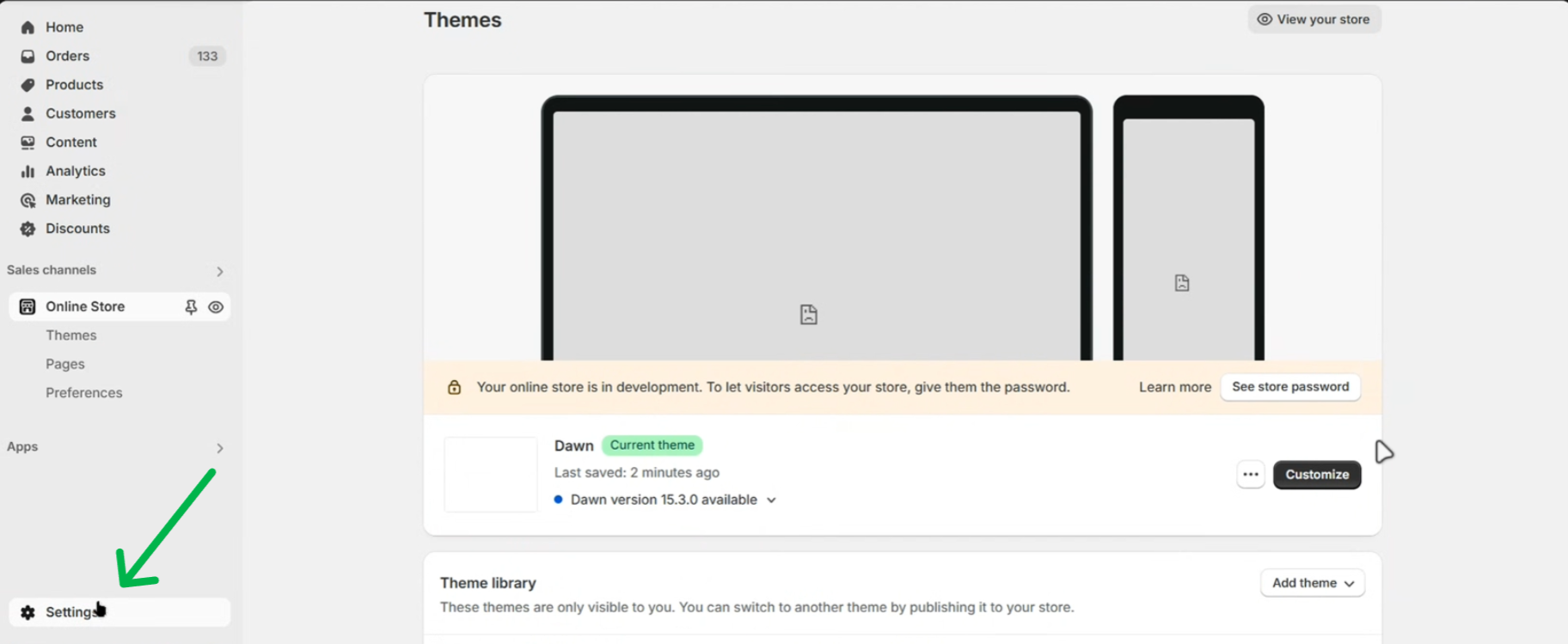 Click Checkout.
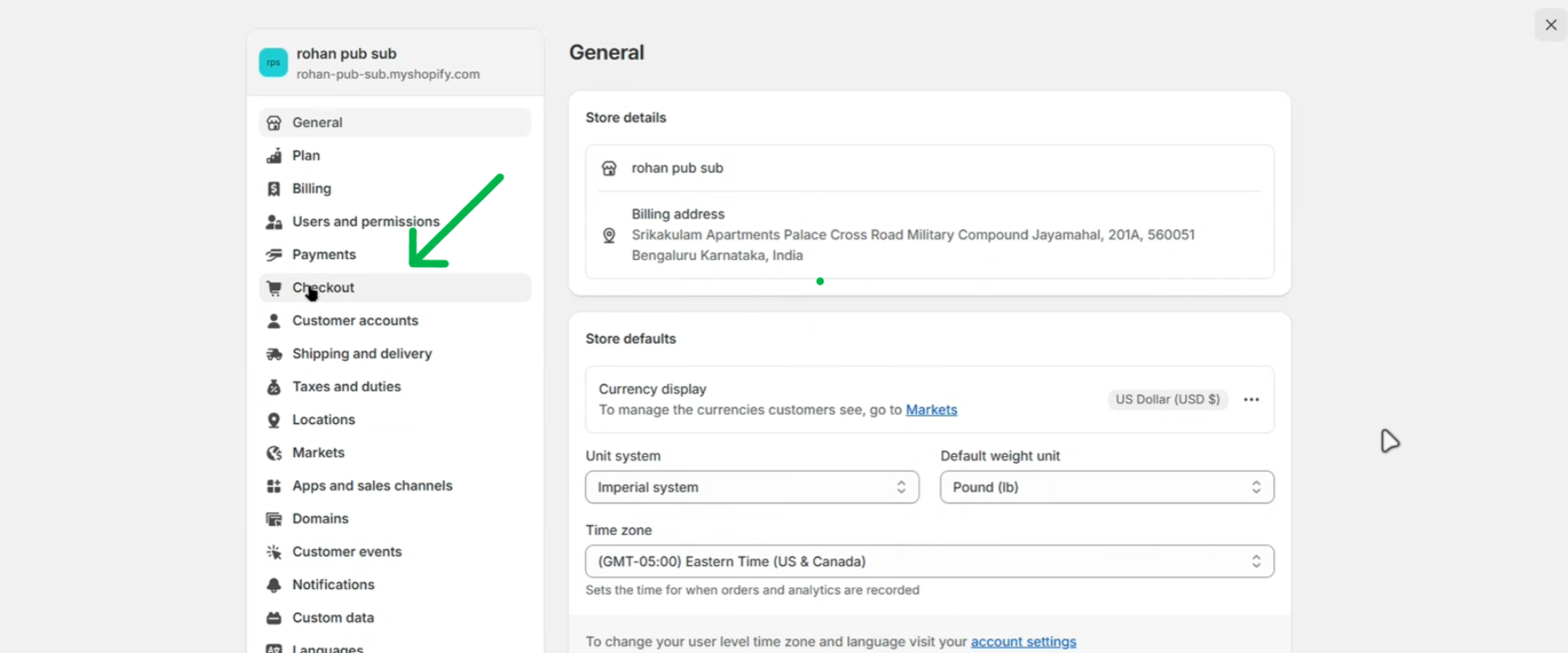 On the Checkout page, click Customize to open the checkout editor.
2
Open Apps
Click the Apps icon in the left sidebar of the checkout editor.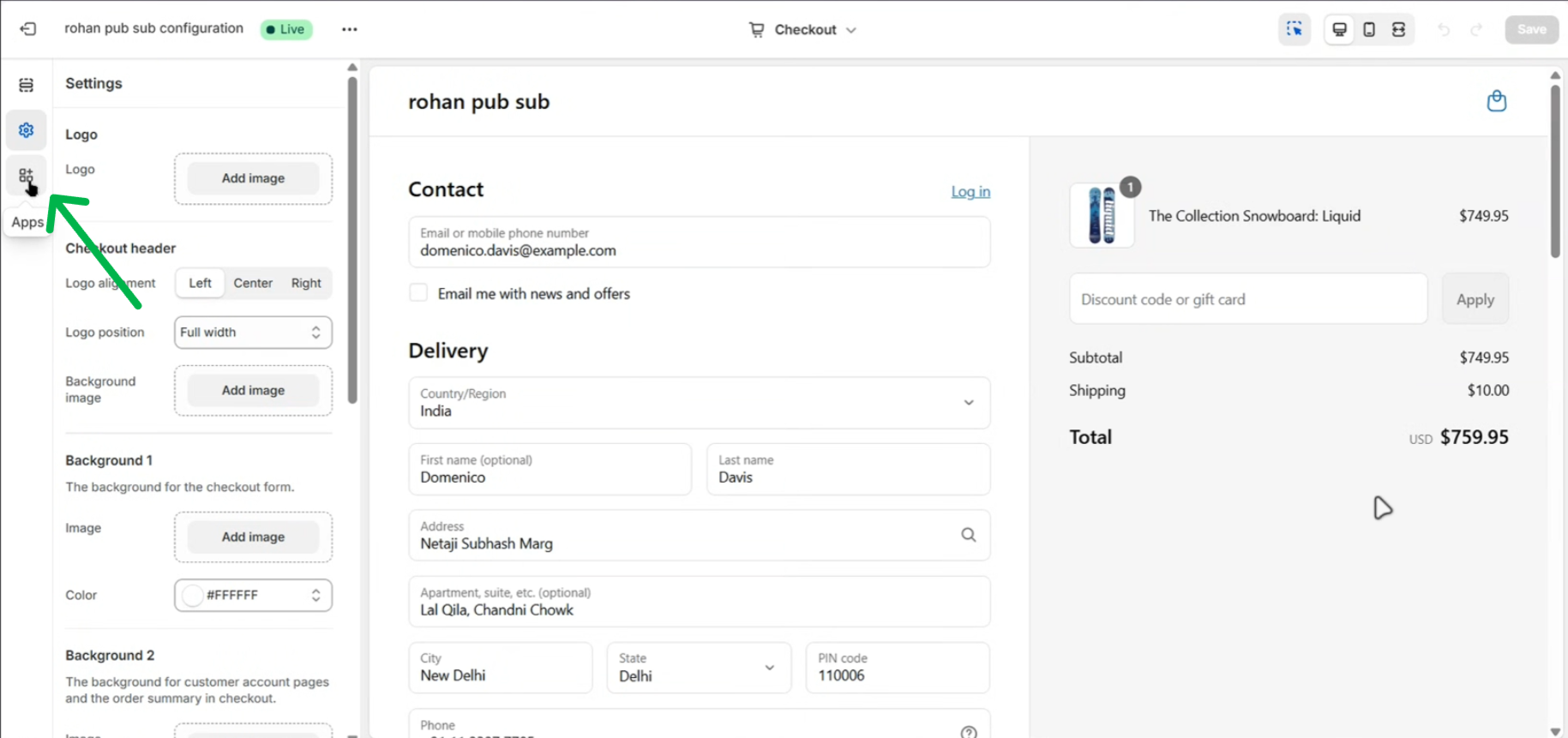
3
Add the Referral Link Extension
Under ReferRush, click the + next to Referral Link Extension and choose Thank you.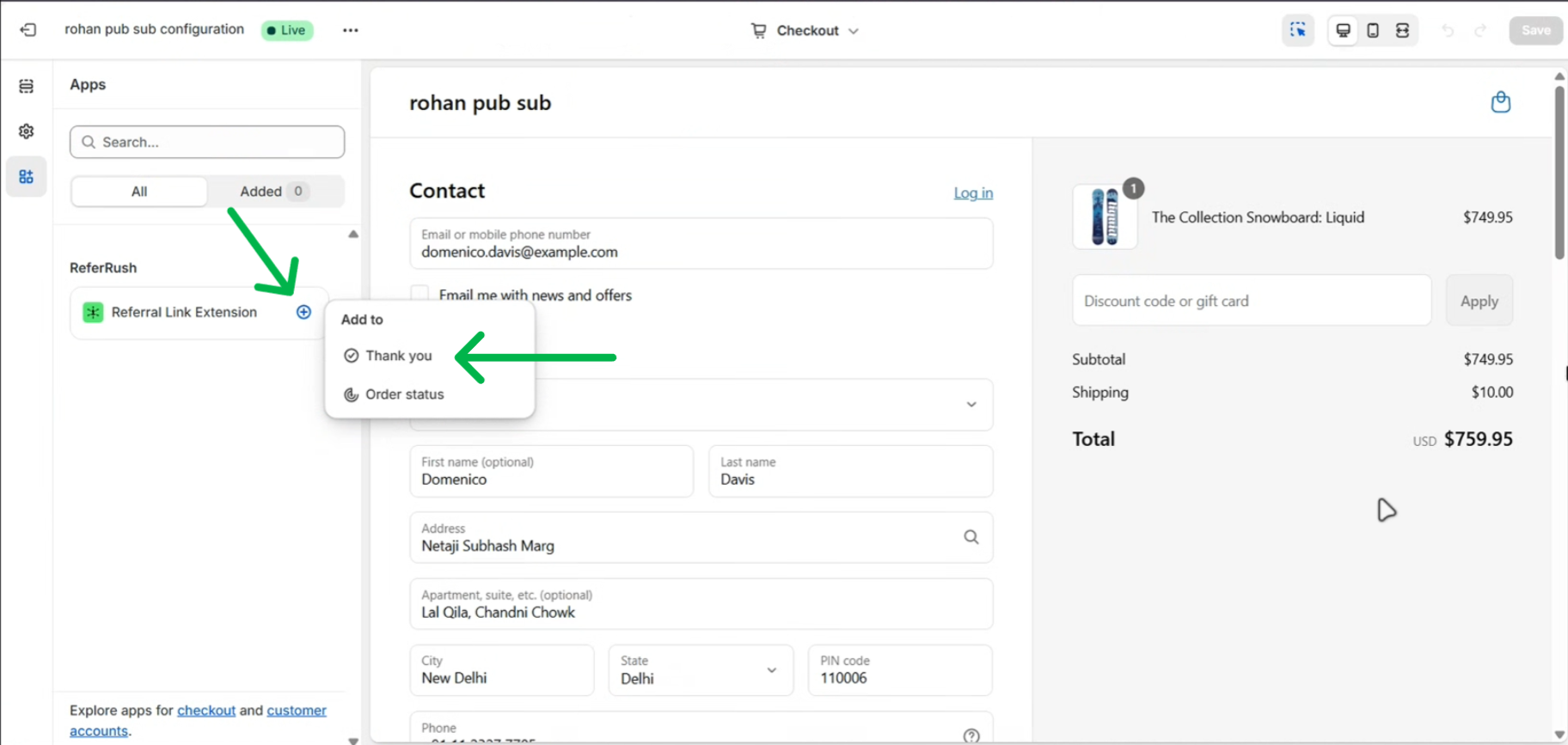
You can also switch the page selector at the top to Thank you and click Add app block, as shown in the video.
4
Save
The referral section now shows in the Thank You page preview. Click Save.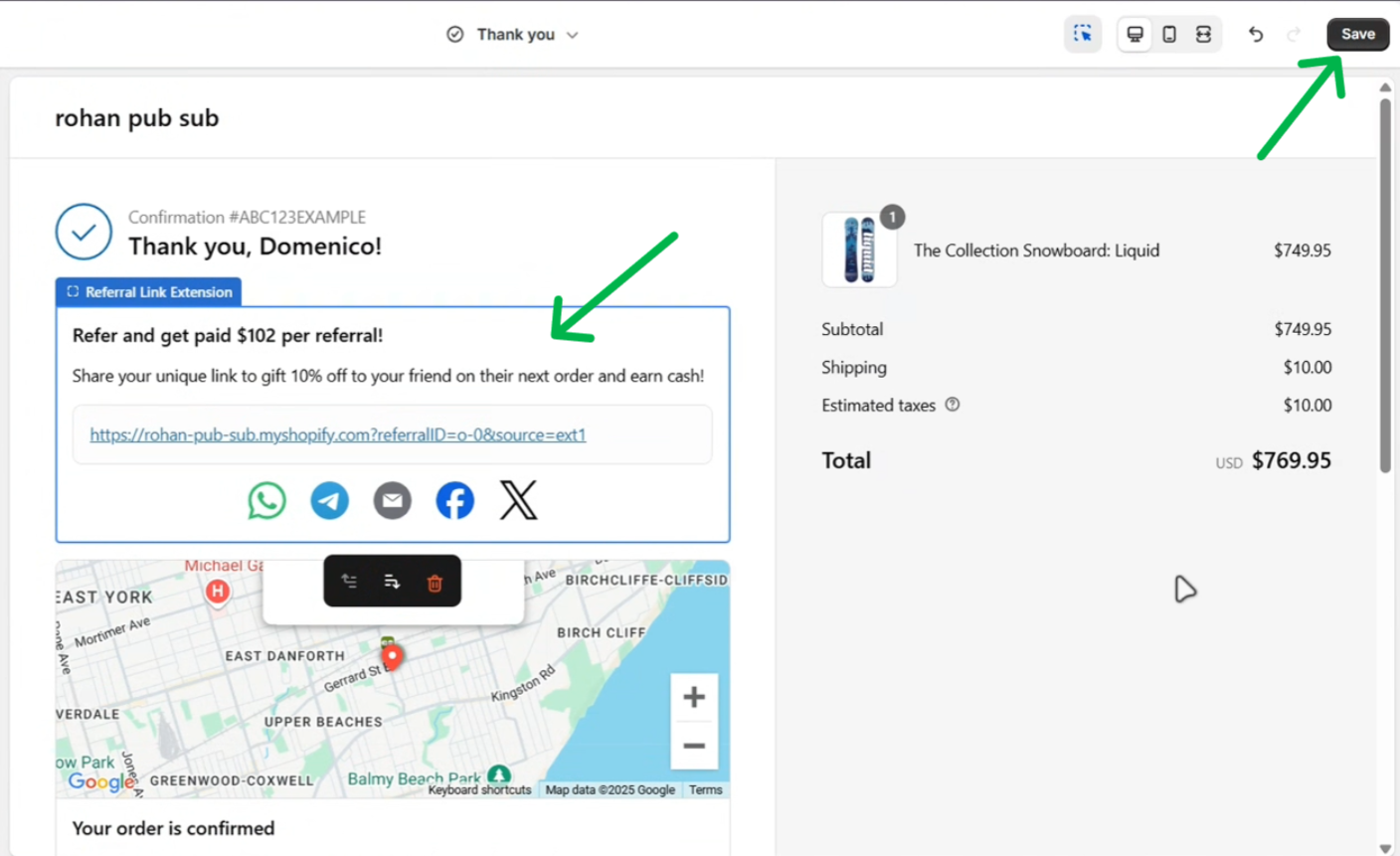
Add it to your Order Status page
Customers come back to the Order Status page to track their order, so add the referral link there too.1
Open Apps again
In the same checkout editor, click the Apps icon in the left sidebar.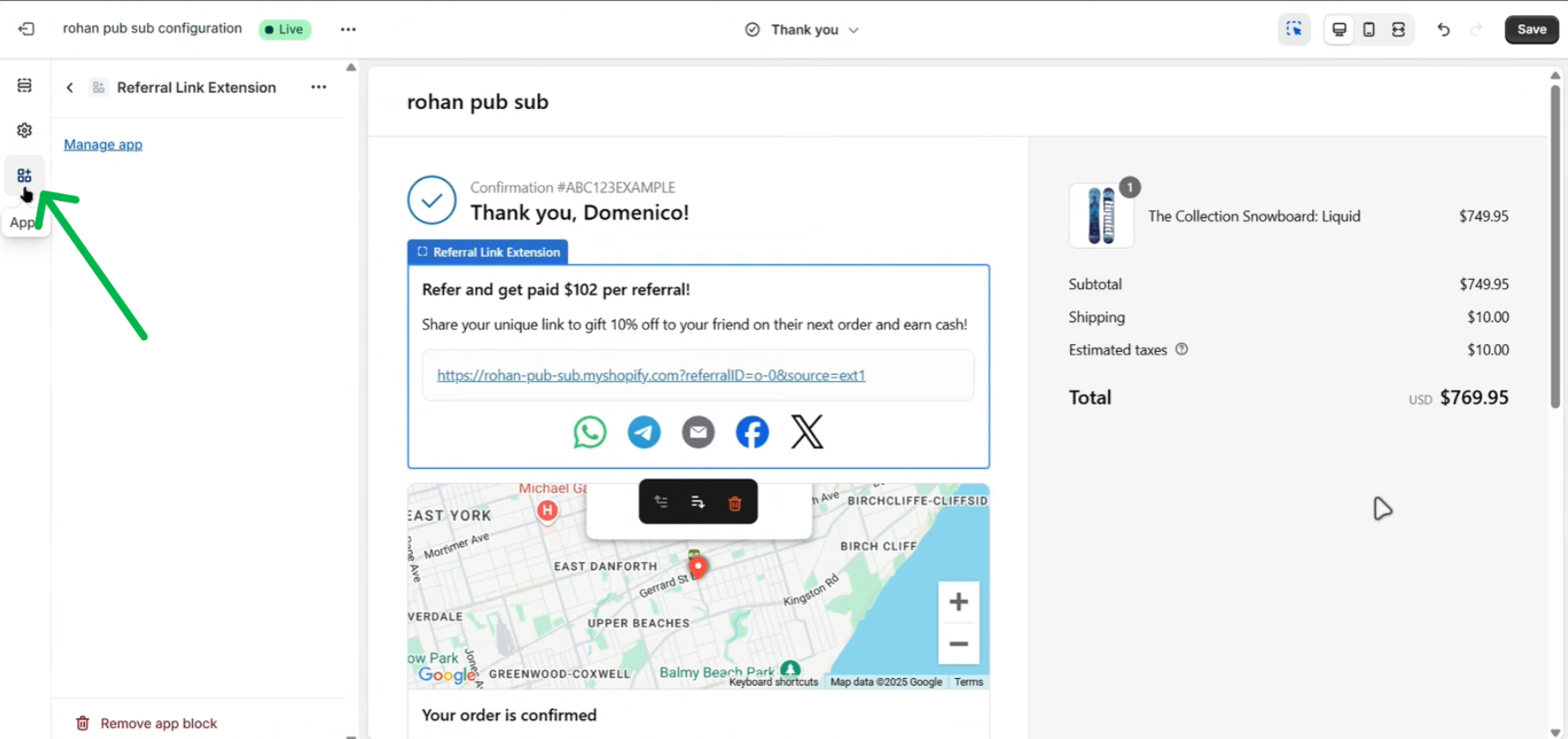
2
Add the Referral Link Extension
Click the + next to Referral Link Extension and choose Order status.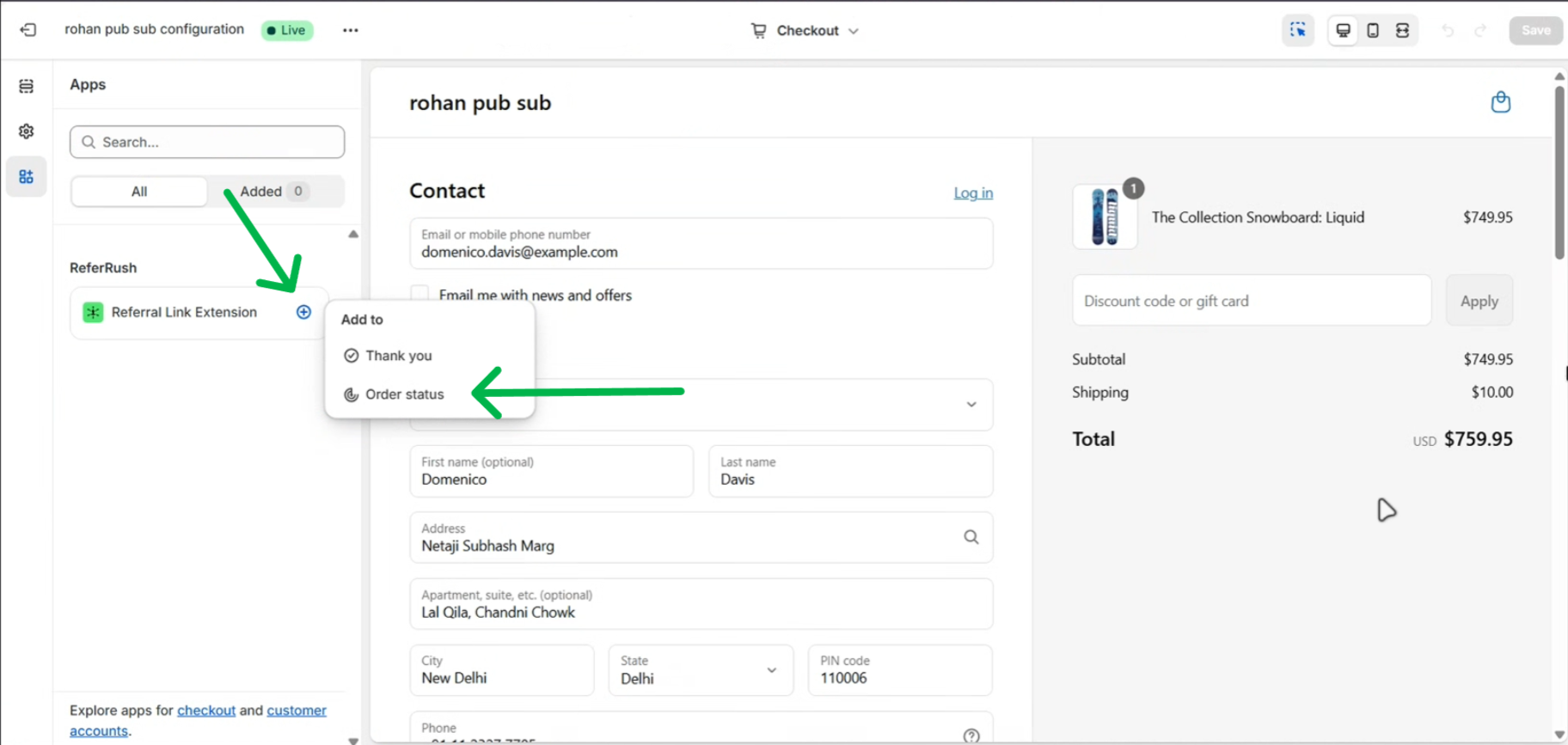
3
Save
The referral section now shows in the Order Status page preview. Click Save.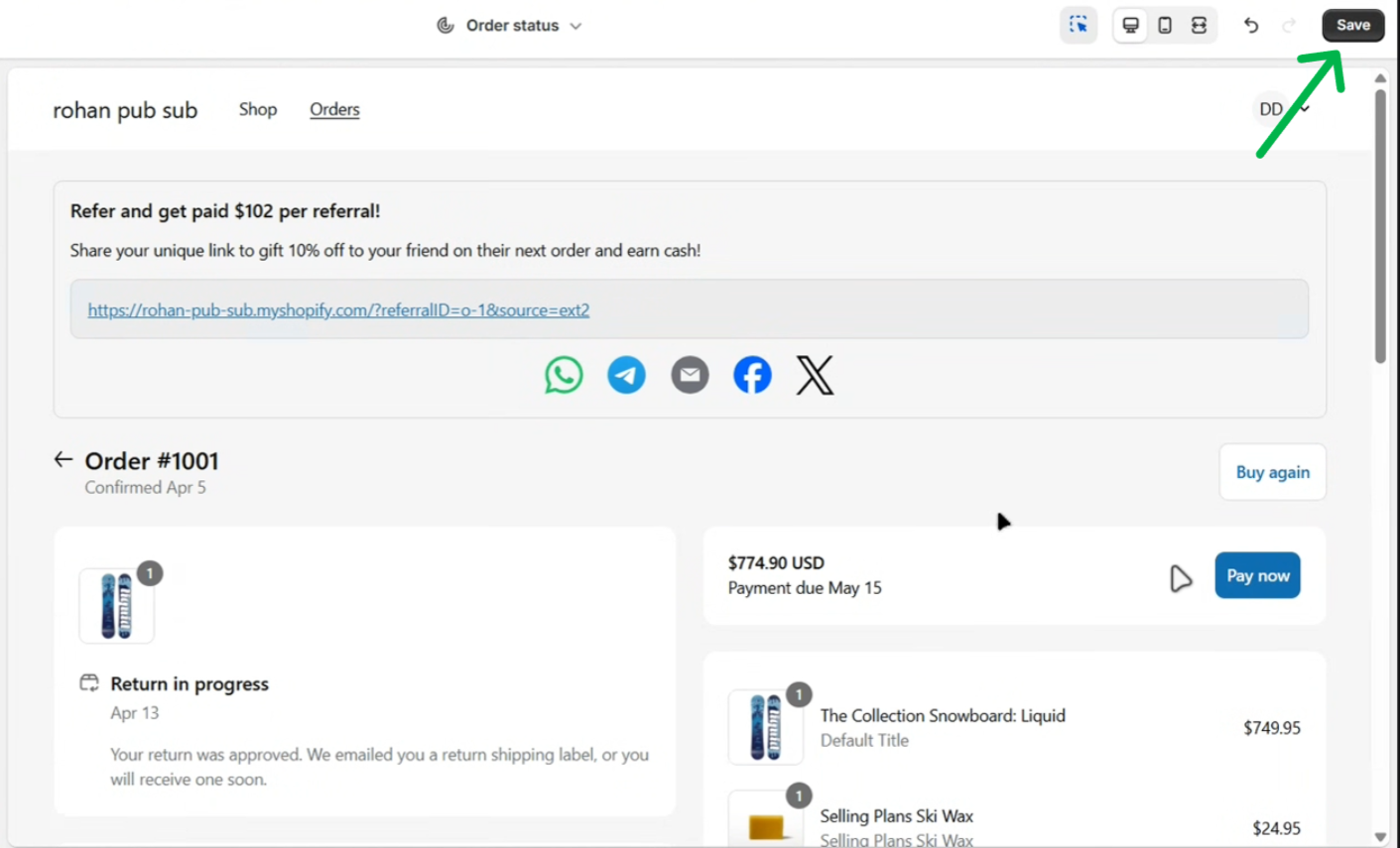
Customize it
In your ReferRush dashboard, go to Channels → Checkout Extension.- Hide the referral CTA on checkout: off by default, so customers see their referral link right after they buy. Turn it on to give customers their link only after their order is delivered. Until then, the section shows “You can refer your friends once your order arrives!”
Troubleshooting
The referral section is not showing
The referral section is not showing
- Make sure you clicked Save in the checkout editor after adding the block.
- Make sure you added it to both the Thank you and Order status pages.
- If the section only says “You can refer your friends once your order arrives!”, Hide the referral CTA on checkout is turned on in your ReferRush dashboard. Turn it off to show the link right after purchase.
- Make sure your referral program is turned on in your ReferRush dashboard.